Tuesday, December 8, 2020

jboss automation using ansible

 Here i am providing the ansible code for Jboss installation  automation . We have ansible tower server called unixchips-jbossserver and the client ( where the jboss needs to be installed ) unixchips-jbossclient. We are installing Jboss-EAP 7.3 using the ansible .

1. First copy the "jboss-eap-7.3.0.zip to the unixchips-jbossclient machine 

-rw-r--r--  1 root root 206430757 Nov 24 20:21 jboss-eap-7.3.0.zip

2. Let's create a role for jboss installation called jboss-standalone .

[unixchips@unixchips-jbossserver jboss-standalone]$ pwd

/etc/ansible/roles/jboss-standalone

3. We need java to be installed in the server as a prerequisite before the jboss installation. So let's create a yamal file to install the java (openjdk) if it is not installed already

**************************************************************************

[unixchips@unixchips-jbossserver tasks]$ cat javanew.yml


      - name: Check if java is installed

        command: java -version

        become: true

        register: java_result

        ignore_errors: True


      - debug:

          msg: "Failed - Java is not installed"

        when: java_result is failed

      - name:

        yum:

         name: java-1.8.0-openjdk.x86_64

         state: present

      - debug:

          msg: "Success - Java is installed"

        when:  java_result is success

**********************************************************************

4. Next we have to create the playbook.yml as below which we will call directly for the installation 

**********************************************************************

- name: main playbook

  hosts: all

  remote_user: unixchips

  become: yes

  vars_prompt:

    - name: instancename

      prompt: "please enter the instancename"

      private: no

    - name: admin_username

      prompt: "please enter the jboss admin name"

      private: no

    - name: admin_passwd

      prompt: "please enter the jboss admin password"

      private: yes

    - name: grp_name

      prompt: "please enter the admin group name"

      private: no


  vars:

    jboss_hostname: 'unixchips-jbossclient'

    cert_alias_name: 'unixchips-jbossclient'

    jboss_bind_address: '165.115.46.43'

    jboss_port_offset: '700'

    jboss_eap_version: 'jboss-eap-7.3'

    instance_name: 'JTS'

    java_home: '/usr/lib/jvm/jre-1.8.0-openjdk-1.8.0.222.b10-0.el7_6.x86_64'

    offset_port: '700'

  roles:

    - jboss-standalone

******************************************************************************

5. The main yamal file for execution is given below with the detailed steps mentioned in it . This yamal file includes 
1. creating the jboss user & group
2. create the /opt/jboss/instance/instance name folder
3.check the java installation status 
4. extract the jboss zip file 
5.copy the required setup/startup/stop scripts 
6. pass the required variables to standalone-full.xml and copy the file to configuration directory
7. finally start the instance using the startup script as jboss user
8. add the admin user and password for jboss console access 

The main.yml file location is  /etc/ansible/roles/jboss-standalone/tasks/


[unixchips@unixchips-jbossserver tasks]$ cat main.yml

---

# - hosts:all


- name: "add user jboss"

  user:

    name: jboss

    group: jboss

    home: /home/jboss


- name: add group "jboss"

  group:

    name: jboss


- include: javanew.yml


- file:

    path: /opt/jboss/instances/{{instancename}}

    state: directory

    owner: jboss

    group: jboss


- file:

    path: /opt/jboss/bin

    state: directory

    owner: jboss

    group: jboss


- name: "extract the jboss.zip file"

  shell: |

    cd "/opt/jboss/instances/{{instancename}}"

    /bin/unzip /tmp/jboss-eap-7.3.0.zip

    chown -R jboss:jboss jboss-eap-7.3


- file:

    path: /opt/jboss/instances/{{instancename}}/jboss-eap-7.3/standalone/log

    state: directory

    owner: jboss

    group: jboss

    mode: 0775

- name: copy the scripts

  template:

    src: /etc/ansible/files/setup_jboss.sh.j2

    dest: /opt/jboss/bin/setup_{{instancename}}.sh

    owner: jboss

    group: jboss

    mode: 0755

#  delegate_to: mtl-jbosstest2.cn.ca


- name: copy the startup script

  template:

    src: /etc/ansible/files/startup_jboss.sh.j2

    dest: /opt/jboss/bin/startup_{{instancename}}.sh

    owner: jboss

    group: jboss

    mode: 0777


- name: copy the stop script

  template:

    src: /etc/ansible/files/stop_jboss.sh.j2

    dest: /opt/jboss/bin/stop_{{instancename}}.sh

    owner: jboss

    group: jboss

    mode: 0755


- name: configure the jboss properties file

  template:

         src: /etc/ansible/files/jboss.properties.j2

         dest: /opt/jboss/bin/jboss_{{instancename}}.properties

         owner: jboss

         group: jboss

         mode: 0755


- name: copy the standalone.xml file

  template:

         src: /etc/ansible/files/standalone-full.xml.j2

         dest: /opt/jboss/instances/{{instancename}}/jboss-eap-7.3/standalone/configuration/standalone-full.xml

         owner: jboss

         group: jboss

         mode: 0755


- name: start the jboss script

  become_user: jboss

  shell: |

    cd /opt/jboss/bin

    /bin/sh startup_{{instancename}}.sh


- name: add the jboss admin user and group

  become_user: jboss

  shell: |

    cd /opt/jboss/instances/{{instancename}}/jboss-eap-7.3/bin

    /bin/sh add-user.sh -u '{{admin_username}}' -p '{{admin_passwd}}' -g '{{grp_name}}'

*******************************************************************************

6. Let's check the files which we used as j2 templates along with this script 

  a. setup_jboss.sh.j2

The template location will be /etc/ansible/files and durring the execution it will pick the desired values from the playbook.yml and copy to the unixchips-jbossclient  (/opt/jboss/bin)

*********************************************************

source /opt/jboss/bin/jboss_{{instancename}}.properties

PATH=${JAVA_HOME}/bin:${PATH}

export JAVA_HOME EAP_HOME PATH

**********************************************************

b. Next template is the jboss.properties.j2 which is used to configure the jboss peoprty details along with the scripts. variables will be picked up from the playbook.yml file and the play book will attach te same to the property file and copy to the client location ( /opt/jboss/bin)

*******************************************************************
[unixchips@unixchips-jbossserver files]$ cat jboss.properties.j2
JBOSS_HOSTNAME={{ jboss_hostname }}
CERT_ALIAS_NAME={{ cert_alias_name }}
JBOSS_BIND_ADDR={{ jboss_bind_address }}
JBOSS_PORT_OFFSET={{ jboss_port_offset }}
GENERATE_CERT=true
LOCALITY=Bangalore
STATE=KA
COUNTRY=INDIA
JBOSS_PORT=$((JBOSS_PORT_OFFSET + 9990))
JBOSS_USER=jboss
USER_TFS=svc-teamfbuild
#svc-teamfprodbuild
JBOSS_ADMIN_USER=jbossadmin
#jboss-jondev-Administrator
#jboss-jonuat-Administrator
#jboss-jonstg-Administrator
#jboss-jonprd-Administrator
#Apigee Administrators
jbossAdminGrp=jboss-jonuat-Administrator
#ldapsrc-jbossndev
#ldapsrc-jbossnuat
#ldapsrc-jbossnstg
#ldapsrc-jbossnprd
#ldapsrc-jbossnppd
#ldapUser=ldapsrc-jbossnuat
JBOSS_EAP_VERSION={{ jboss_eap_version }}
JBOSS_ZIP=/opt/$JBOSS_USER/$JBOSS_EAP_VERSION.0.zip
EAP_HOME=/opt/jboss/instances/{{ instance_name }}/$JBOSS_EAP_VERSION
JAVA_HOME={{ java_home }}
USE_DYNATRACE=false

********************************************************************
c. startup_jboss.sh.j2  . This is the script which we are using to start the instances . Required parameters will be copied from the playbook.yml and main.yml file will copy the same to /opt/jboss/bin directory of the client machine 

******************************************************************

[unixchips@unixchips-jbossserver files]$ cat startup_jboss.sh.j2

source /opt/jboss/bin/jboss_{{instancename}}.properties

. /opt/jboss/bin/setup_{{instancename}}.sh

nohup ${EAP_HOME}/bin/standalone.sh -Djboss.bind.address=$JBOSS_BIND_ADDR -Djboss.bind.address.management=$JBOSS_HOSTNAME -Djboss.server.default.config=standalone-full.xml >> /opt/jboss/instances/{{ instance_name }}/$JBOSS_EAP_VERSION/standalone/log/jboss_Test.log 2>&1 &

***********************************************************

d. stop_jboss.sh.j2 , This is the script to stop the instance and as usual the parameters will be taken from the jboss.property file and playbook.yml. File location will be /opt/jboss/bin directory in client machine 

************************************************************************


[unixchips@unixchips-jbossserver files]$ cat stop_jboss.sh.j2

source /opt/jboss/bin/jboss_{{instancename}}.properties


. /opt/jboss/bin/setup_{{instancename}}.sh

${EAP_HOME}/bin/jboss-cli.sh --connect --controller=$JBOSS_HOSTNAME:$JBOSS_PORT -c --command=shutdown


sleep 10

JbossInstance_PID=`ps -ef | grep java | grep jboss | grep -w {{instancename}} | grep -v grep | awk '{print $2}'`

if [ -z $JbossInstance_PID ]; then

    echo "Jboss Instance Stopped"

else

    echo "Process still running... Kill process:" $JbossInstance_PID

    kill -9 $JbossInstance_PID

fi

****************************************************************

7. Now let's execute the ansible script and check the output ..i have made the small modifications in the playbook.yml as given the instance name as "ttk" and offset port as 750 . Now let's call the playbook 

***********************************************************************************

[unixchips@unixchips-jbossserver ~]$ ansible-playbook -i /etc/ansible/hosts playbook.yml
[DEPRECATION WARNING]: The TRANSFORM_INVALID_GROUP_CHARS settings is set to allow bad characters in group names by default, this will
change, but still be user configurable on deprecation. This feature will be removed in version 2.10. Deprecation warnings can be
disabled by setting deprecation_warnings=False in ansible.cfg.
[WARNING]: Invalid characters were found in group names but not replaced, use -vvvv to see details

please enter the instancename: ttk
please enter the jboss admin name: adminuser1
please enter the jboss admin password:
please enter the admin group name: mgmtuser

PLAY [main playbook] ********************************************************************************************************************

TASK [Gathering Facts] ******************************************************************************************************************
ok: [unixchips-jbosseclient]

TASK [jboss-standalone : add user jboss] ************************************************************************************************
ok: [unixchips-jbosseclient]

TASK [jboss-standalone : add group "jboss"] *********************************************************************************************
ok: [unixchips-jbosseclient]

TASK [jboss-standalone : Check if java is installed] ************************************************************************************
changed: [unixchips-jbosseclient] 

TASK [jboss-standalone : debug] *********************************************************************************************************
skipping: [unixchips-jbosseclient ]

TASK [jboss-standalone : yum] ***********************************************************************************************************
ok: [unixchips-jbosseclient ]

TASK [jboss-standalone : debug] *********************************************************************************************************
ok: [unixchips-jbosseclient ] => {
    "msg": "Success - Java is installed"
}

TASK [jboss-standalone : file] **********************************************************************************************************
changed: [unixchips-jbosseclient ]

TASK [jboss-standalone : file] **********************************************************************************************************
ok: [unixchips-jbosseclient ]

TASK [jboss-standalone : extract the jboss.zip file] ************************************************************************************
changed: [unixchips-jbosseclient ]

TASK [jboss-standalone : file] **********************************************************************************************************
changed: [unixchips-jbosseclient ]

TASK [jboss-standalone : copy the scripts] **********************************************************************************************
changed: [unixchips-jbosseclient ]

TASK [jboss-standalone : copy the startup script] ***************************************************************************************
changed: [unixchips-jbosseclient ]

TASK [jboss-standalone : copy the stop script] ******************************************************************************************
changed: [unixchips-jbosseclient ]

TASK [jboss-standalone : configure the jboss properties file] ***************************************************************************
changed: [unixchips-jbosseclient ]

TASK [jboss-standalone : copy the standalone.xml file] **********************************************************************************
changed: [unixchips-jbosseclient ]

TASK [jboss-standalone : start the jboss script] ****************************************************************************************
changed: [ unixchips-jbosseclient]

TASK [jboss-standalone : add the jboss admin user and group] ****************************************************************************
changed: [unixchips-jbosseclient ]

PLAY RECAP ******************************************************************************************************************************
unixchips-jbosseclient       : ok=17   changed=11   unreachable=0    failed=0    skipped=1    rescued=0    ignored=0

8. Now if login to the client machine and check the "ttk" instance we can see jboss instance  is installed

 [root@unixchips-jbossclient instances]# ps -ef |grep -i ttk
jboss    26947     1  0 19:53 ?        00:00:00 /bin/sh /opt/jboss/instances/ttk/jboss-eap-7.3/bin/standalone.sh -Djboss.bind.address=165.115.46.43 -Djboss.bind.address.management=mtl-jbosstest2.cn.ca -Djboss.server.default.config=standalone-full.xml
jboss    27040 26947 82 19:53 ?        00:00:14 /usr/lib/jvm/jre-1.8.0-openjdk-1.8.0.222.b10-0.el7_6.x86_64/bin/java -D[Standalone] -server -verbose:gc -Xloggc:/opt/jboss/instances/ttk/jboss-eap-7.3/standalone/log/gc.log -XX:+PrintGCDetails -XX:+PrintGCDateStamps -XX:+UseGCLogFileRotation -XX:NumberOfGCLogFiles=5 -XX:GCLogFileSize=3M -XX:-TraceClassUnloading -Xms1303m -Xmx1303m -XX:MetaspaceSize=96M -XX:MaxMetaspaceSize=256m -Djava.net.preferIPv4Stack=true -Djboss.modules.system.pkgs=org.jboss.byteman -Djava.awt.headless=true -Dorg.jboss.boot.log.file=/opt/jboss/instances/ttk/jboss-eap-7.3/standalone/log/server.log -Dlogging.configuration=file:/opt/jboss/instances/ttk/jboss-eap-7.3/standalone/configuration/logging.properties -jar /opt/jboss/instances/ttk/jboss-eap-7.3/jboss-modules.jar -mp /opt/jboss/instances ttk/jboss-eap-7.3/modules org.jboss.as.standalone -Djboss.home.dir=/opt/jboss/instances/ttk/jboss-eap-7.3 -Djboss.server.base.dir=/opt/jboss/instances/ttk/jboss-eap-7.3/standalone -Djboss.bind.address=165.115.46.43 -Djboss.bind.address.management=mtl-jbosstest2.cn.ca -Djboss.server.default.config=standalone-full.xml

Thank you for reading 


Tuesday, February 11, 2020

Openshift configuration management part1

In software engineering it is recommended to separate dynamic configuration from static run time software.   This allows developers and operation engineers to change the configuration without having rebuild the runtime.

In openshift it is recommended to only have runtime software packaged in to a container image and stored in the registry . Configuration is then injected to the runtime image during the  initialization stage. The major advantage of this approach is that run time image can be build once the configuration can change as the application is promoted to different environments ( like DEV/SIT/PROD)

In openshift we have below mechanisms that can be added as configuration changes in a running pod


  • secrets
  • Configuration maps 
  • Environment variables
  • Downward API
  • Layered builds 
  • Resource Quotas

Secrets 

Secrets are the mechanism by which sensitive information ( like username/password/certificates) can be added to pods . Also it will keep the OpenShift Container Platform client configuration files, dockercfg files, private source repository credentials, and so on. Secrets decouple sensitive content from the pods. You can mount secrets into containers using a volume plug-in or the system can use secrets to perform actions on behalf of a pod.

Secret object definition
******************* 

apiVersion: v1 kind: Secret metadata: name: unixchipssecret namespace: my-namespace type: Opaque 1 data: 2 username: dmFsdWUtMQ0K 3 password: dmFsdWUtMg0KDQo= stringData: 4 hostname: myapp.mydomain.com 5

1. Indicates the structure of the secret key names and values 
2. The allowable format for the keys in the data field
3. The value associated with keys in the data map must be base64 encoded.
4. The value associated with keys in the stringData map is made up of plain text strings
5.Domain name 

save this file as unixchipssecret.yml and now we have to create the secret from this file 

#oc create -f unixchipssecret.yml 

Also we can use the oc secret command to create the secret 

#oc secret new unixchipssecret cert.pem 

#oc get secrets 

NAME                   AGE                TYPEDATA

unixchipssecret        40s                Opaque


We can add labels to the secret for management purpose
#oc label secret unixchipssecret env=test
secret "unixchipssecret" labeled 

#oc get secrets --show-labels=true 

NAME          AGE             TYPE       LABELS
unixchipssecret  53s          Opaque      env=Test 


Once the secret is created it is needs to be added to the pod . There are two methods to do that 

Mounting the secret as a volume 
Mounting the secret as an environment variable 

First we will try to add the secret as a volume to the underlying deployment configuration 

# oc get dc | grep nodejs-ex

NAME           REVISION    DESIRED    CURRENT  TRIGGERED  BY 

node-canary          2                  1                           1         config.image(nodejs-ex:canary)

nodejs-ex              16                1                            1         config.image(nodejs-ex:latest)


#oc volume dc/nodejs-ex --add -t secret --secret-name=unixchipssecret -m /etc/keys --name=unixchips-keys deploymentconfigs/nodejs-ex 

Adding the volume will trigger the config changes and the pods are redeployed . To verify the secrets are mounted under volume mounts run the following command 


$ oc describe pod nodejs-ex-21-apdcg

Poclicy:    restricted
Node:            192.168.65.2/192.168.65.2
Start Time:        Sat, 22 Oct 2016 15:48:26 +1100
Labels:            appcccccccccc=nodejs-ex
            deployment=nodejs-ex-21
            deploymentconfig=nodejs-ex
Status:            Running
IP:            172.17.0.13
Controllers:        ReplicationController/nodejs-ex-21
Containers:
  nodejs-ex:
    Container ID:    docker://255be1c595fc2654468ab0f0df2f99715ac3f05d1773d05c59
a18534051f2933
    Image:        172.30.18.34:5000/node-dev/nodejs-ex@sha256:891f5118149f1f1343
30d1ca6fc9756ded5dcc6f810e251473e3eeb02095ea95
    Image ID:        docker://sha256:6a0eb3a95c6c2387bea75dbe86463e31ab1e1ed7ee1
969b446be6f0976737b8c
    Port:        8080/TCP
    State:        Running
      Started:        Sat, 22 Oct 2016 15:48:27 +1100
    Ready:        True
    Restart Count:    0
    Volume Mounts:
      /etc/keys from unixchipskeys (rw)
      /var/run/secrets/kubernetes.io/serviceaccount from default-token-lr5yp(ro)
    Environment Variables:    <none>

The files contained within the secret will be available in the /var/key directory

$oc rsh nodejs-ex-22-8noey ls /etc/keys 

certs               unixchipskeys 

Now we can check how to mount the secret as environment variable

First create the secret

$ oc secret new unixchips-env-secrets 
username=user-file
password=password-file

secret/unixchips-env-secrets 

Then add it to the deployment config 

$oc set env dc/nodejs-ex --from=secret/unixchips-env-secrets 

deploymentconfig 'nodejs-ex' updated 

Now if we check the pod

$ oc describe pod nodejs-ex-22-8noey

Name:            nodejs-ex-22-8noey
Namespace:        node-dev
Security Policy:    restricted
Node:            192.168.65.2/192.168.65.2
Start Time:        Sat, 22 Oct 2016 16:37:35 +1100
Labels:            app=nodejs-ex
            deployment=nodejs-ex-22
            deploymentconfig=nodejs-ex
Status:            Running
IP:            172.17.0.14
Controllers:        ReplicationController/nodejs-ex-22
Containers:
  nodejs-ex:
    Container ID:    docker://a129d112ca8ee730b7d8a41a51439e1189c7557fa917a852c50e539903e2721a
    Image ID:        docker://sha256:6a0eb3a95c6c2387bea75dbe86463e31ab1e1ed7ee1969b446be6f0976737b8c
    Port:        8080/TCP
    State:        Running
      Started:        Sat, 22 Oct 2016 16:37:36 +1100
    Ready:        True
    Restart Count:    0
    Volume Mounts:
      /var/keys from ssl-keys (rw)
      /var/run/secrets/kubernetes.io/serviceaccount from default-token-lr5yp (ro)
    Environment Variables:

      PASSWORD:    <set to the key 'password' in secret 'unixchips-env-secrets'>
      USERNAME:    <set to the key 'username' in secret 'unixchips-env-secrets'>

$oc set env dc/nodejs-ex --list 

deploymentconfigs nodejs-ex container nodejs-ex 
container nodejs-ex

PASSWORD from secret env-secrets, key password 
USERNAME from secret unixchips-env-secrets, key username 

Configuration maps 

Configuration maps almost same as secrets , but it contains non sensitive text-based configuration. Configuration maps also injected to the pods as volumes or as a set of environment variables . A major difference between the configuration maps and secrets is how they handle the updates. When the content of a configuration map is changed it is reflected in the pods that it is mounted it and the content of the files in the pods files system are changed . Configuration maps mounted as environment variable do not change on other case .


1. Creating the configuration map

$oc create configmap unixchips-config --from-literal=key1=config1 --from-literal=key2=config2
--from-file=filters.properties

configmap 'unixchips-config' created 

2. Mounting configuration maps as volumes 
We can read config maps as volumes that can be readable within our container

$oc volume dc/nodejs-ex --add -t configmap -m /etc/config --name=app-config 
--configmap-name=unixchips-config  

deploymentconfigs/nodejs-ex 

The configuration map will be available in the /etc/config directory 

$oc rsh nodejs-ex-26-44kdm ls /etc/config 

filters.properties key1 key2 

3. To change the configuration maps we have to delete it and recreate it 

$oc delete configmap unixchips-config

configmap 'unixchips-configmap' deleted 

$$oc create configmap unixchips-config --from-literal=key1=config3 --from-literal=key2=config4
--from-file=filters.properties

configmap 'unixchips-config' created 

(we have updated the new configuration config3 & config4 and updated in the pods) 

$oc rsh nodejs-ex-26-44kdm ls /etc/config 

filters.properties key1 key2 key3 

4. Mounting the configuration map as environment variable 

$oc set env dc/nodejs-ex --from=configmap/unixchips-config

deploymentconfig 'nodejs-ex' updated 


$oc describe pod nodejs-ex-27-mqurr

Name: nodejs-ex-27-mqurr
Namespace: node-dev
Security Policy: restricted
Node: 192.168.65.2/192.168.65.2
Start Time: Sat, 22 Oct 2016 21:15:57 +1100
Labels: app=nodejs-ex
deployment=nodejs-ex-27
deploymentconfig=nodejs-ex
Status: Running
IP: 172.17.0.13
Controllers: ReplicationController/nodejs-ex-27
Containers:
nodejs-ex:
Container ID: docker://b095481dfae40855815afe46dc61086957a99c907edb5a26fed1a39ed559e725
Image: 172.30.18.34:5000/node-dev/nodejs-ex@sha256:891f5118149f1f134330d1ca6fc9756ded5dcc6f810e251473e3eeb02095ea95
Image ID: docker://sha256:6a0eb3a95c6c2387bea75dbe86463e31ab1e1ed7ee1969b446be6f0976737b8c
Port: 8080/TCP
State: Running
Started: Sat, 22 Oct 2016 21:15:59 +1100
Ready: True
Restart Count: 0
Volume Mounts:
/etc/config from app-config (rw)
/var/run/secrets/kubernetes.io/serviceaccount from default-token-lr5yp (ro)
Environment Variables:
FILTERS_PROPERTIES: <set to the key 'filters.properties' of config map 'test-config'>
KEY1: <set to the key 'key1' of config map 'unixchips-config'>
KEY2: <set to the key 'key2' of config map 'unixchips-config'>

Also we have another option to create the configmaps from a file and mapping it to the pod definition .

First create a config map file as below by mentioning the environment  variable 

# cat example.env
VAR_1=Hello
VAR_2=World

$oc create configmap unixchips-config --from-env-file=example.env
configmap "unixchips-config" created

Below command will provide the details about the resources created on it 

# oc describe configmap/unixchips-config
Name: unixchips-config
Namespace: advanced
Labels: <none>
Annotations: <none>
Data
====
VAR_1:
----
Hello
VAR_2:
----
World
Events: <none>

The next step is to inject this config map to the pod by mentioning inside the pod definition file 

# cat example-pod-1.yml
apiVersion: v1
kind: Pod
metadata:
name: example
spec:
containers:
- name: example
image: cirros
command: ["/bin/sh", "-c", "env"]
envFrom:
- configMapRef:
name: unixchips-config

# oc create -f example-pod-1.yml
pod "example" created

if we check the logs of the pod we can see the environment variables mentioned in the configmap 


# oc logs po/example
...
<output omitted>
...
VAR_1=Hello
VAR_2=World

Remaining topics i will update in second part 

Thank you for reading ..


Friday, January 17, 2020

CICD pipe line using openshift & jenkins

Jenkins is one of the major component for Continues integration and Continues Delivery ( CICD) setup in devops world which is reducing the complexity of SDLC environment. Here I am giving the example to implement CICD pipeline using openshift jenckins . Below is the architecture


In this scenario we have one core project called CICD and under that multiple projects as DEV/Test/Production . Also We should configure jenkins -ephemeral temple to setup the CICD as pre requisite.


CICD
Containing our Jenkins instance

Development
For building and developing our application images

Testing
For testing our application

Production
Hosting our production application


1. first create the projects as below

$oc new-project cicd --display-name='CICD Jenkins' --description='CICD Jenkins'
$oc new-project development --display-name='Development' --description='Development'
$ oc new-project testing --display-name='Testing' --description='Testing'
$ oc new-project production --display-name='Production' --description='Production'


2. now we have to configure RBAC in these projects, let the master project service account(cicd jenkins) should have edit access to all other projects 

$ oc policy add-role-to-user edit system:serviceaccount:cicd:jenkins -n development
$ oc policy add-role-to-user edit system:serviceaccount:cicd:jenkins -n testing
$ oc policy add-role-to-user edit system:serviceaccount:cicd:jenkins -n production

3. Testing and production enviroenment should have image pull access from the dev env

$ oc policy add-role-to-group system:image-puller system:serviceaccounts:testing -n development
$oc policy add-role-to-group system:image-puller system:serviceaccounts:production -n development

. now create the jenkin ephemeral instance to the cicd jenkin project 

$ oc project cicd
$ oc new-app --template=jenkins-ephemeral \
    -p JENKINS_IMAGE_STREAM_TAG=jenkins-2-rhel7:latest \
    -p NAMESPACE=openshift \
    -p MEMORY_LIMIT=2048Mi \
    -p ENABLE_OAUTH=true

5. Now create the pipe line inside the cicd project as below 

$ oc create -n cicd -f https://raw.githubusercontent.com/devops-with-openshift/pipeline-configs/master/pipeline.yaml

6. we can keep the back up of the pipline config as below for future use

$oc export bc pipeline -o yaml -n cicd


7. deploy the app 

$oc project development
$oc new-app --name=myapp openshift/php:5.6 https://github.com/devops-with-openshift/cotd.git#master
$oc expose service myapp --name=myapp --hostname=unixchips-development.192.168.137.3.xip.io


8. by default openshift will build and deploy the our application in the development project and use rolling deployment strategy for any changes.
   we will be using the image stream that has been created to tag and promote in to the testing and production changes. We will be using the same image stream that can be 
   created to tag and promote in to the testing and production projects.
   
   For that we need to create the deployment configuration in testing and production projects and to create the DC we need the ip address of the docker registry
   We will get the docker registry ip from the development image stream
   
   #oc get is -n development 
   
   Name  DOCKER REPO
   TAGS  UPDATED 
   myapp 172.30.18.201:5000/development/myapp latest 13 minuted ago
   
   If we have a cluster admin role we can check the docker registry service directly 
   
   #oc get svc docker-registry -n default 
      
   NAME             CLUSTERIP         EXTERNALIP      PORTS       AGE
   docker-registry  172.30.18.201     <none>          5000/tcp    18d   


Now create a deployment configuration in the testing project 
   
   oc project testing
   oc create dc myapp --image=172.30.18.201:5000/deveopment/myapp:promoteQA
   oc deploy myapp --cancel 
   The last step is needed becouse we have to cancel the autodeployment as we haven't used our pipeline to build/tag/promote our image yet
   
  9.  Next thing is we need to change the "ImagePullPolicy" for our container , by default it is set if notpresent , but out motive is to trigger the deployment when tag a new image 

$oc patch dc/myapp -p '{"spec":{"template":{"spec":{"containets":[{"name":"default-container","imagePullPolicy":"Always"}]}}}}'

10. Now let's create the service and route 

$oc expose dc myapp --port=8080
$oc expose service myapp --name=myapp --hostname=unixchips -testing.192.168.137.3

11. Repeat the same steps for production 

$oc  project production 
$oc create dc myapp -- image=172.30.18.201:5000/development/myapp:promotePRD
$oc deploy myapp --cancel 
$oc patch dc/myapp -p '{"spec":{"template":{"spec"{"containers":[{"name":"default-container","imagePullPolicy":"Always"}]}}}'
$oc deploy myapp --cancel
$oc expose dc myapp --port=8080
$oc expose service myapp --hostname=unixchips-production.192.168.173.3 --name=myapp 

11. Let's run the pipeline deployment in cicd project 

$oc start-build pipeline -n cicd 

Once you login to the openshift-jenkins web console we can see that pipelines are created and waiting for the execution 


In production pipeline will wait for the user input to execute .

Thank you for reading 


Friday, July 26, 2019

configuring search ( Azure search & Elastic search) in azure


Azure search

Azure Search leverages the Microsoft’s Azure cloud infrastructure to bring robust search-as-a-service solutions, without the need to manage the infrastructure. With Azure Search, you can use a simple REST API or .NET SDK to bring your data into Azure and start configuring your search application.

Azure Search is an API based service that provides REST APIs via protocols such as OData or integrated libraries such as the .NET SDK. Primarily the service consists of the creation of data indexes and search requests within the index.

Data to be searched is uploaded into logical containers called indexes. An interface schema is created as part of the logical index container that provides the API hooks used to return search results with additional features integrated into Azure Search. Azure Search provides two different indexing engines: Microsofts own proprietary natural language processing technology or Apache Lucene analyzers.[3] The Microsoft search engine is ostensibly built on Elasticsearch.[4]

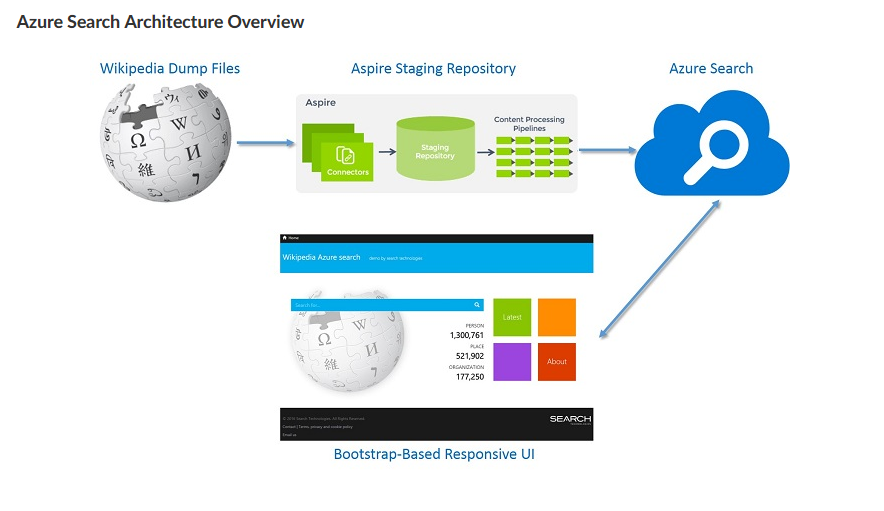
Below is one of the example using azure search 


Imagine to build a search application to avail the contents of wikipedia which contains massive amount of data, we can use third party repository connector to dump data directly from wikipedia  to azure search . So the process was a seamless transfer as no disks were needed to store data at any time.


With Azure Search, users will be able to quickly create a search index, upload data into it, and set up search queries through the aid of common API calls and using the Microsoft .NET SDK. Once the search index is up and running, the solution ensures that it can instantly return search results even if there is a high volume of traffic coming in or there is a large amount of data that needs to be transmitted.

The search-as-a-service cloud solution allows users to enable search capabilities on their applications so they can improve how users search and access content. These capabilities include search suggestions, faceted navigation, filters, hit highlighting, sorting, and paging. It also allows users to take advantage of its natural language processing techniques, modern query syntaxes, and sophisticated search features. Last but not least, Azure Search offers monitoring and reporting features. Users can gain insights into what people are searching for and entering into the search box as well as access reports that show metrics related to queries, latency, and more.


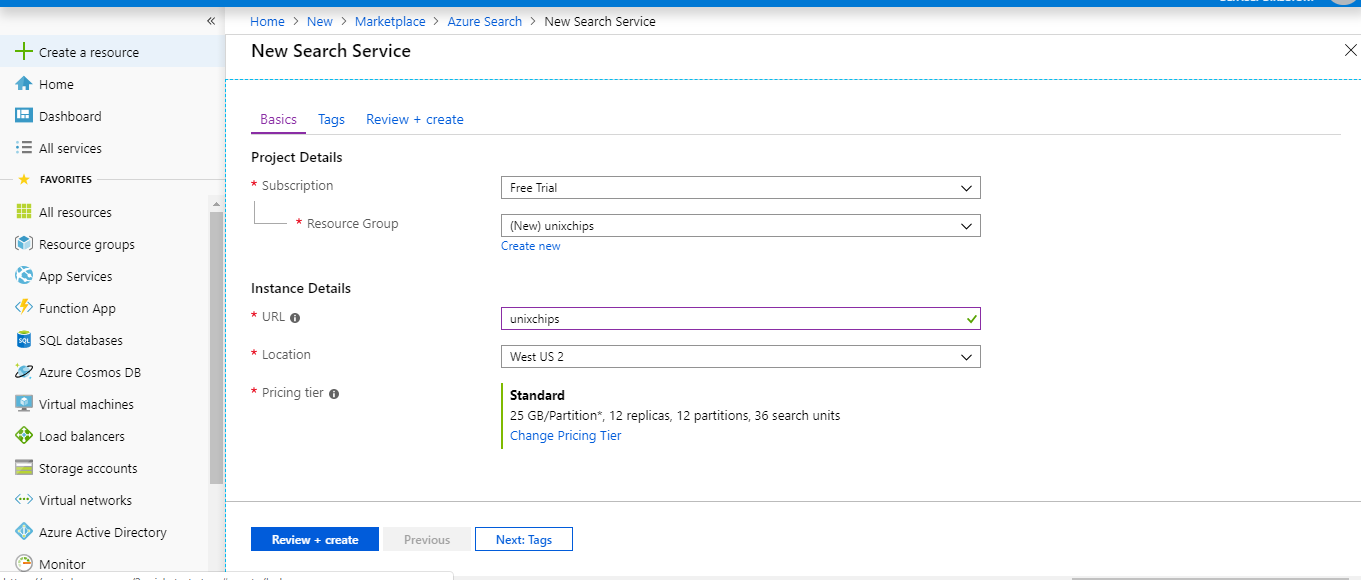
Configuring azure search using azure portal 

1. Login to azure - create resource - search for azure search 


2. Provide the subscription and url details as below , also mention the url which will used to access the search portal, also need to mention the subscription details 


3. If we need to access the search api through applications we need key details which is available in the key session of the search .


4  Let's scale the search as per the needs. If we have standard subscription we can have 2 dimensional scaling called partitions and replicas.

Replicas distribute workloads across the service and Partitions allow for scaling of document counts as well as faster data ingestion by spanning your index over multiple Azure Search Units. I have created 2 partitions and 2 replicas .


5. Now let's create the index for search .. click on the search service which you created and click add index. provide the index name ( here i have provided the index name as hotel). search mode is analyzinginfixmatching ( which is the only mode available which performs the flexible matching of the phrases at the beginning or middle of the sentences) .  Next is to define the fields , as an example i have defined id, hotel name, address, description, base rate .  Type we have to provide as either ed. string ( which is the text data ) and edm.double ( which is the floating values)

Different key fields for the index's are

Searchable - Full-text searchable, subject to lexical analysis such as word-breaking during indexing. If you set a searchable field to a value like "sunny day", internally it will be split into the individual tokens "sunny" and "day".

Filterable- Referenced in $filter queries. Filterable fields of type Edm.String or Collection(Edm.String)do not undergo word-breaking, so comparisons are for exact matches only. For example, if you set such a field f to "sunny day", $filter=f eq 'sunny' will find no matches, but $filter=f eq 'sunny day' will.

Sortable - By default the system sorts results by score, but you can configure sort based on fields in the documents. Fields of type Collection(Edm.String) cannot be sortable.

facetable- Typically used in a presentation of search results that includes a hit count by category (for example, hotels in a specific city). This option cannot be used with fields of type Edm.GeographyPoint. Fields of type Edm.String that are filterable, sortable, or facetable can be at most 32 kilobytes in length. For details, see Create Index (REST API).

Key - Unique identifier for documents within the index. Exactly one field must be chosen as the key field and it must be of type Edm.String.

Retrieveble- Determines whether the field can be returned in a search result. This is useful when you want to use a field (such as profit margin) as a filter, sorting, or scoring mechanism, but do not want the field to be visible to the end user. This attribute must be true for key fields.


6. Next to import data to the indexes. we have multiple sources to import the data ( azure blobs, tables, cosmos DB, Azure SQL DB) etc. Here i am taking the sample as data source ( which is the hotels sample.


7. Let's run the query to fetch the data , here we are giving hotel's with spa felicity as a sample and we can see the search result which is available in json format.


Comparison on Azure search and elastic search

Azure search


  1. Full text search and text analysis, the basic use case. Query syntax provides the set of operators, such as logical, phrase search, suffix, and precedence operators, and also includes fuzzy and proximity searches, term boosting, and regular expressions.
  2. Cognitive search, this functionality is in preview mode (please note, that this information is valid at the time of writing the article). It was designed to allow image and text analysis, which can be applied to an indexing pipeline to extract text information from raw content with the help of AI-powered algorithms.
  3. Data integration, Azure Search provides the ability to use indexers to automatically crawl Azure SQL Database, Azure Cosmos DB, or Azure Blob storage for searchable content. Azure Blob indexers can perform a text search in the documents (including Microsoft Office, PDF, and HTML documents).
  4. Linguistic analysis, you can use custom lexical analyzers and language analyzers from Lucene or Microsoft for complex search queries using phonetic matching and regular expressions or for handling (like gender, irregular plural nouns, word-breaking, and more).
  5. Geo-search, functionality to search for information by geographic locations or order the search results based on their proximity to a physical location that can be beneficial for the end users.
  6. User experience features, includes everything that facilitates user interaction with search functionality: auto-complete (preview), search suggestions, associating equivalent terms by synonyms, faceted navigation (which can be used as the code behind a categories list or for self-directed filtering), hit highlighting, sorting, paging and throttling results.
  7. Relevance, the key benefit of which is scoring profiles to model the relevance of values in the documents. For example, you can use it, if you want to show hot vacancies higher in the search results.


Elastic search


  1. Textual Search, this is the most common use case, and primarily Elasticsearch is used where there is lots of text, and the goal is to find any data for the best match with a specific phrase.
  2. Text search and structured data allows you to search product by properties and name.
  3. Data Aggregation, as it is mentioned in official documentation, the aggregation’s framework helps provide aggregated data based on a search query. It is based on simple building blocks called aggregations, that can be composed in order to build complex summaries of the data. There are many different types of aggregations, each with its own purpose and output.
  4. JSON document storage represents a JSON object with some data, which is the basic information unit in Elasticsearch that can be indexed.
  5. Geo Search provides the ability to combine geo and search. Such functionality is slowly becoming a must have for any content website.
  6. Auto Suggest is also one of the very popular functions nowadays, which allows the user to receive suggested queries as they type.
  7. Autocomplete this is one of the very helpful functions, which autocompletes the search field on partially-typed words, based on the previous searches.

Configuring ELK ( elastic search ,logstash, Kibana) in azure 

1. First we have to configure an ubuntu instance for the installation purpose under new resource group called elk.


2. create the inbound rules for the access to the port 9200 and 5601 for ELK access 


3. Login to the instance using ssh and execute the below commands

  sign in the elastic key for downloading the package 

root@elktest:~# wget -qO - https://artifacts.elastic.co/GPG-KEY-elasticsearch | sudo apt-key add -
OK

  update the packages 


root@elktest:~# sudo apt-get update
Hit:1 http://azure.archive.ubuntu.com/ubuntu bionic InRelease
Get:2 http://azure.archive.ubuntu.com/ubuntu bionic-updates InRelease [88.7 kB]
Get:3 http://azure.archive.ubuntu.com/ubuntu bionic-backports InRelease [74.6 kB]
Get:4 http://security.ubuntu.com/ubuntu bionic-security InRelease [88.7 kB]
Get:5 http://azure.archive.ubuntu.com/ubuntu bionic-updates/main amd64 Packages [693 kB]
Get:6 http://azure.archive.ubuntu.com/ubuntu bionic-updates/main Translation-en [254 kB]
Get:7 http://azure.archive.ubuntu.com/ubuntu bionic-updates/universe amd64 Packages [976 kB]
Get:8 http://azure.archive.ubuntu.com/ubuntu bionic-updates/universe Translation-en [295 kB]
Get:9 http://security.ubuntu.com/ubuntu bionic-security/main amd64 Packages [460 kB]
Get:10 http://security.ubuntu.com/ubuntu bionic-security/main Translation-en [158 kB]
Get:11 http://security.ubuntu.com/ubuntu bionic-security/universe amd64 Packages [574 kB]
Get:12 http://security.ubuntu.com/ubuntu bionic-security/universe Translation-en [187 kB]
Fetched 3850 kB in 1s (2671 kB/s)
Reading package lists... Done


root@elktest:~# sudo apt-get install apt-transport-https
Reading package lists... Done
Building dependency tree
Reading state information... Done
The following NEW packages will be installed:
  apt-transport-https
0 upgraded, 1 newly installed, 0 to remove and 4 not upgraded.
Need to get 1692 B of archives.
After this operation, 153 kB of additional disk space will be used.
Get:1 http://azure.archive.ubuntu.com/ubuntu bionic-updates/universe amd64 apt-transport-https all 1.6.11 [1692 B]
Fetched 1692 B in 0s (103 kB/s)
Selecting previously unselected package apt-transport-https.
(Reading database ... 55690 files and directories currently installed.)
Preparing to unpack .../apt-transport-https_1.6.11_all.deb ...
Unpacking apt-transport-https (1.6.11) ...
Setting up apt-transport-https (1.6.11) ...

next is to add the repository definition to the system

root@elktest:~# echo "deb https://artifacts.elastic.co/packages/7.x/apt stable main" | sudo tee -a /etc/apt/sources.list.d/elastic-7.x.list
deb https://artifacts.elastic.co/packages/7.x/apt stable main
root@elktest:~#

Next is to install the elastic search 

root@elktest:~# sudo apt-get update && sudo apt-get install elasticsearch
Hit:1 http://azure.archive.ubuntu.com/ubuntu bionic InRelease
Hit:2 http://azure.archive.ubuntu.com/ubuntu bionic-updates InRelease
Hit:3 http://azure.archive.ubuntu.com/ubuntu bionic-backports InRelease
Get:4 https://artifacts.elastic.co/packages/7.x/apt stable InRelease [5620 B]
Get:5 https://artifacts.elastic.co/packages/7.x/apt stable/main amd64 Packages [10.0 kB]
Hit:6 http://security.ubuntu.com/ubuntu bionic-security InRelease
Fetched 15.6 kB in 1s (25.5 kB/s)
Reading package lists... Done
Building dependency tree
Reading state information... Done
The following NEW packages will be installed:
  elasticsearch
0 upgraded, 1 newly installed, 0 to remove and 4 not upgraded.
Need to get 337 MB of archives.
After this operation, 536 MB of additional disk space will be used.
Get:1 https://artifacts.elastic.co/packages/7.x/apt stable/main amd64 elasticsearch amd64 7.2.0 [337 MB]
Fetched 337 MB in 10s (33.7 MB/s)
Selecting previously unselected package elasticsearch.
(Reading database ... 55694 files and directories currently installed.)
Preparing to unpack .../elasticsearch_7.2.0_amd64.deb ...
Creating elasticsearch group... OK
Creating elasticsearch user... OK
Unpacking elasticsearch (7.2.0) ...
Processing triggers for ureadahead (0.100.0-21) ...
Setting up elasticsearch (7.2.0) ...
Created elasticsearch keystore in /etc/elasticsearch
Processing triggers for systemd (237-3ubuntu10.24) ...
Processing triggers for ureadahead (0.100.0-21) ...

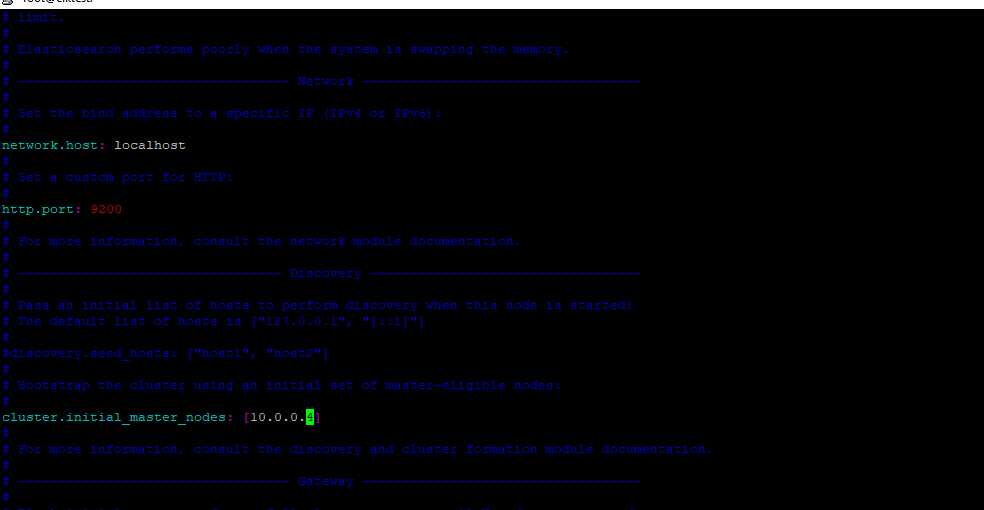
Once the installation is completed connect to the /etc/elasticsearch/elasticsearch.yml file and change the nodename , port and cluster initial master IP ( which is the private IP of the instance) 


restart the service 

Once you restart the service we should get the output as below  if we access the http://localhost:9200 through curl 

root@elktest:~# curl "http://localhost:9200"
{
  "name" : "elktest",
  "cluster_name" : "elasticsearch",
  "cluster_uuid" : "_na_",
  "version" : {
    "number" : "7.2.0",
    "build_flavor" : "default",
    "build_type" : "deb",
    "build_hash" : "508c38a",
    "build_date" : "2019-06-20T15:54:18.811730Z",
    "build_snapshot" : false,
    "lucene_version" : "8.0.0",
    "minimum_wire_compatibility_version" : "6.8.0",
    "minimum_index_compatibility_version" : "6.0.0-beta1"
  },
  "tagline" : "You Know, for Search"
}

Installing Logstash 

Install the latest java , and once the java is installed check the version 

root@elktest:~# java -version
openjdk version "11.0.3" 2019-04-16
OpenJDK Runtime Environment (build 11.0.3+7-Ubuntu-1ubuntu218.04.1)
OpenJDK 64-Bit Server VM (build 11.0.3+7-Ubuntu-1ubuntu218.04.1, mixed mode, sharing)


install the logstash

root@elktest:~# sudo apt-get install logstash
Reading package lists... Done
Building dependency tree
Reading state information... Done
The following NEW packages will be installed:
  logstash
0 upgraded, 1 newly installed, 0 to remove and 4 not upgraded.
Need to get 173 MB of archives.
After this operation, 300 MB of additional disk space will be used.
Get:1 https://artifacts.elastic.co/packages/7.x/apt stable/main amd64 logstash all 1:7.2.0-1 [173 MB]
Fetched 173 MB in 6s (29.6 MB/s)
Selecting previously unselected package logstash.
(Reading database ... 70880 files and directories currently installed.)
Preparing to unpack .../logstash_1%3a7.2.0-1_all.deb ...
Unpacking logstash (1:7.2.0-1) ...
Setting up logstash (1:7.2.0-1) ...
Using provided startup.options file: /etc/logstash/startup.options
OpenJDK 64-Bit Server VM warning: Option UseConcMarkSweepGC was deprecated in version 9.0 and will likely be removed in a future release.
WARNING: An illegal reflective access operation has occurred
WARNING: Illegal reflective access by org.jruby.util.SecurityHelper to field java.lang.reflect.Field.modifiers
WARNING: Please consider reporting this to the maintainers of org.jruby.util.SecurityHelper
WARNING: Use --illegal-access=warn to enable warnings of further illegal reflective access operations
WARNING: All illegal access operations will be denied in a future release
/usr/share/logstash/vendor/bundle/jruby/2.5.0/gems/pleaserun-0.0.30/lib/pleaserun/platform/base.rb:112: warning: constant ::Fixnum is deprecated
Successfully created system startup script for Logstash

Next step is to install the kibana 

root@elktest:~# sudo apt-get install kibana
Reading package lists... Done
Building dependency tree
Reading state information... Done
The following NEW packages will be installed:
  kibana
0 upgraded, 1 newly installed, 0 to remove and 4 not upgraded.
Need to get 218 MB of archives.
After this operation, 558 MB of additional disk space will be used.
Get:1 https://artifacts.elastic.co/packages/7.x/apt stable/main amd64 kibana amd64 7.2.0 [218 MB]
Fetched 218 MB in 7s (31.0 MB/s)
Selecting previously unselected package kibana.
(Reading database ... 87098 files and directories currently installed.)
Preparing to unpack .../kibana_7.2.0_amd64.deb ...
Unpacking kibana (7.2.0) ...
Processing triggers for ureadahead (0.100.0-21) ...
Setting up kibana (7.2.0) ...
Processing triggers for systemd (237-3ubuntu10.24) ...
Processing triggers for ureadahead (0.100.0-21) ...

Open the kibana configuration file and make sure we have updated below details in /etc/kibana/kibana.yml


restart the kibana service 

Now we can access the kibana from the browser 


Let's install Beats which is the lightweight data shippers install as agents on your servers to send specific types of operational data to Elasticsearch.


root@elktest:/var/log/kibana# sudo apt-get install metricbeat
Reading package lists... Done
Building dependency tree
Reading state information... Done
The following NEW packages will be installed:
  metricbeat
0 upgraded, 1 newly installed, 0 to remove and 4 not upgraded.
Need to get 37.6 MB of archives.
After this operation, 162 MB of additional disk space will be used.
Get:1 https://artifacts.elastic.co/packages/7.x/apt stable/main amd64 metricbeat amd64 7.2.0 [37.6 MB]
Fetched 37.6 MB in 2s (22.8 MB/s)
Selecting previously unselected package metricbeat.
(Reading database ... 170061 files and directories currently installed.)
Preparing to unpack .../metricbeat_7.2.0_amd64.deb ...
Unpacking metricbeat (7.2.0) ...
Setting up metricbeat (7.2.0) ...
Processing triggers for ureadahead (0.100.0-21) ...
Processing triggers for systemd (237-3ubuntu10.24) ...

Start the Metricbeat 

root@elktest:/var/log/kibana# sudo service metricbeat start
root@elktest:/var/log/kibana# /etc/init.d/metricbeat status
● metricbeat.service - Metricbeat is a lightweight shipper for metrics.
   Loaded: loaded (/lib/systemd/system/metricbeat.service; disabled; vendor preset: enabled)
   Active: active (running) since Fri 2019-07-26 15:14:45 UTC; 14s ago
     Docs: https://www.elastic.co/products/beats/metricbeat
 Main PID: 39450 (metricbeat)
    Tasks: 10 (limit: 9513)
   CGroup: /system.slice/metricbeat.service
           └─39450 /usr/share/metricbeat/bin/metricbeat -e -c /etc/metricbeat/metricbeat.yml -path.home /usr/share/metricbeat -path.config /etc/metricbeat -path.data…at

Jul 26 15:14:47 elktest metricbeat[39450]: 2019-07-26T15:14:47.309Z        INFO        [index-management]        idxmgmt/std.go:394        Set setup.templa… is enabled.
Jul 26 15:14:47 elktest metricbeat[39450]: 2019-07-26T15:14:47.309Z        INFO        [index-management]        idxmgmt/std.go:399        Set setup.templa… is enabled.
Jul 26 15:14:47 elktest metricbeat[39450]: 2019-07-26T15:14:47.309Z        INFO        [index-management]        idxmgmt/std.go:433        Set settings.ind… is enabled.
Jul 26 15:14:47 elktest metricbeat[39450]: 2019-07-26T15:14:47.310Z        INFO        [index-management]        idxmgmt/std.go:437        Set settings.ind… is enabled.
Jul 26 15:14:47 elktest metricbeat[39450]: 2019-07-26T15:14:47.311Z        INFO        template/load.go:169        Existing template will be overwritten, a… is enabled.
Jul 26 15:14:47 elktest metricbeat[39450]: 2019-07-26T15:14:47.712Z        INFO        template/load.go:108        Try loading template metricbeat-7.2.0 to…lasticsearch
Jul 26 15:14:48 elktest metricbeat[39450]: 2019-07-26T15:14:48.002Z        INFO        template/load.go:100        template with name 'metricbeat-7.2.0' loaded.
Jul 26 15:14:48 elktest metricbeat[39450]: 2019-07-26T15:14:48.002Z        INFO        [index-management]        idxmgmt/std.go:289        Loaded index template.
Jul 26 15:14:48 elktest metricbeat[39450]: 2019-07-26T15:14:48.805Z        INFO        [index-management]        idxmgmt/std.go:300        Write alias succ…y generated.
Jul 26 15:14:48 elktest metricbeat[39450]: 2019-07-26T15:14:48.808Z        INFO        pipeline/output.go:105        Connection to backoff(elasticsearch(ht… established
Hint: Some lines were ellipsized, use -l to show in full.
root@elktest:/var/log/kibana#


When we check using below command we can see Metric beat is started monitoring the server and create an Elasticsearch index which you can define in Kibana

root@elktest:/var/log/kibana# curl 'localhost:9200/_cat/indices?v'
health status index                              uuid                   pri rep docs.count docs.deleted store.size pri.store.size
yellow open   metricbeat-7.2.0-2019.07.26-000001 ct8Ts4oNQguZP8vkg6aShg   1   1        355            0    885.5kb        885.5kb
green  open   .kibana_task_manager               GdpCyTl3QnGax2fEIbOaJw   1   0          2            0     37.5kb         37.5kb
green  open   .kibana_1                          SQCc6TFTRE2nYjRsdYT9cQ   1   0          3            0     12.2kb         12.2kb
root@elktest:/var/log/kibana#

To begin analyzing these metrics, open up the Management → Kibana → Index Patterns page in Kibana. You’ll see the newly created ‘metricbeat-*’ index already displayed:


Configured the visualization as per our needs .. 


Thank you for reading